> ## Documentation Index
> Fetch the complete documentation index at: https://docs.berrybyte.net/llms.txt
> Use this file to discover all available pages before exploring further.
# Importing Files
> How to upload files to your game server using SFTP, web upload, server importer, and URL download.
## Web Upload
Limited to **100MB**.
Go to **File Manager** and drag-and-drop files to upload.
**Uploading folders?**\
Zip them first using [7Zip](https://7zip.org) or [WinRAR](https://winrar.org), then upload the archive and click **Unarchive**.
Supported formats: `.zip`, `.7z`, `.tar.gz`
***
## Server Importer
No size limit.
Import files directly from another server.\
Go to **File Manager** → **Import Files**.
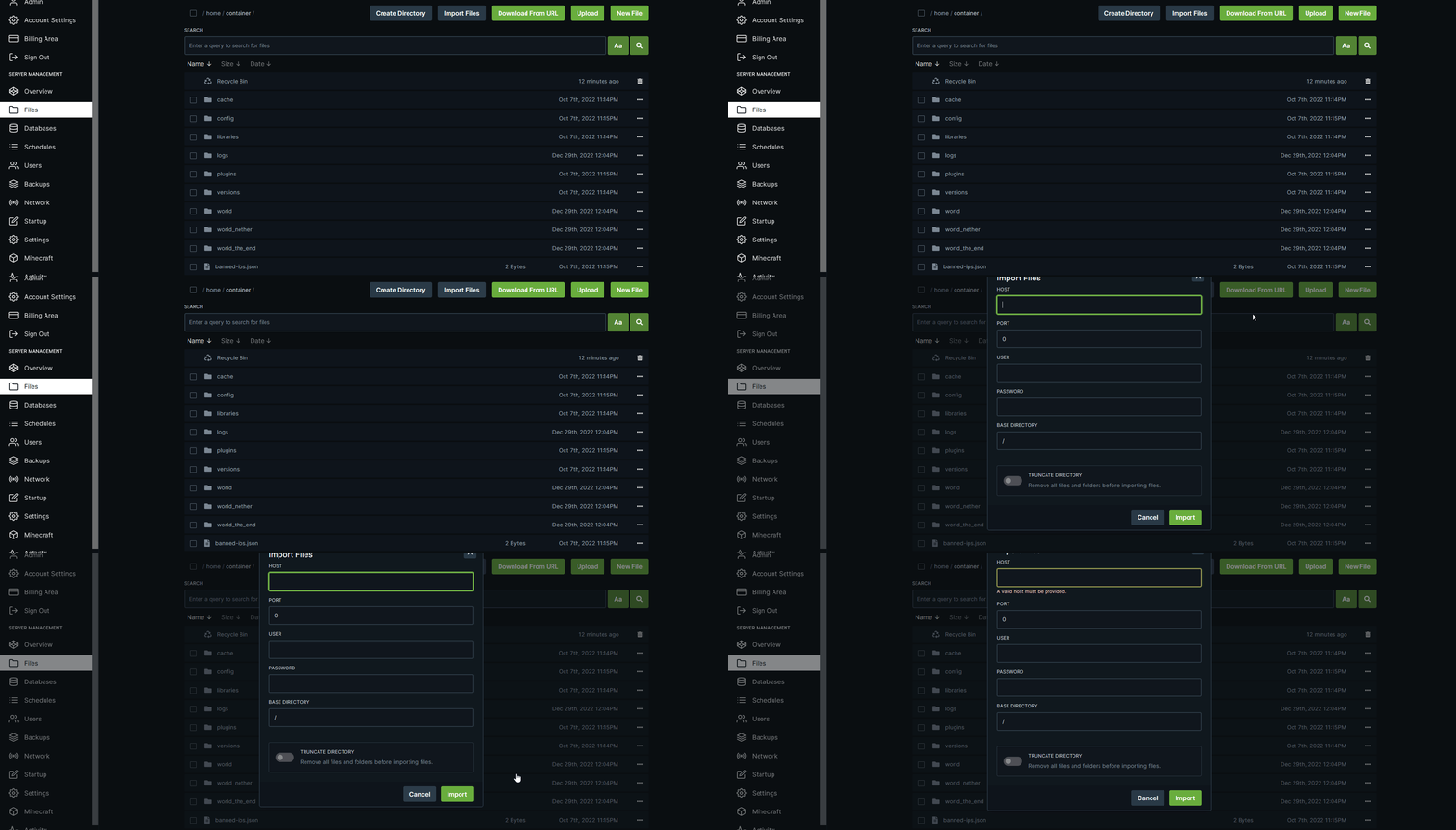 Enter your old server's **SFTP/FTP/FTPS** credentials.\
Leave the base directory as default, or specify a folder (e.g., `/plugins`) to import only that folder.
Click **Import Files** to begin the transfer.
***
## SFTP Upload
No size limit. Recommended for large files.
Use SFTP if you’re uploading **worlds**, **modpacks**, or files larger than 100MB.
### Recommended SFTP Clients
* **[Cyberduck](https://cyberduck.io/)** — Simple UI, Windows & macOS
* **[WinSCP](https://winscp.net/eng/download.php)** — Windows-only
* **[Termius](https://termius.com/)** — Advanced, cross-platform
### How to Connect
1. Go to **Settings** → **Launch SFTP**
2. Copy your SFTP details
3. Open Cyberduck (or another client)
4. Choose **Open Connection → SFTP (SSH File Transfer Protocol)**
5. Enter your credentials
6. Drag-and-drop your files into the server
**Slow transfer?**\
Lots of small files upload slowly.\
Zip them first, upload once, and then [unarchive](/panel/unarchiving) them in the panel.
***
## Download from URL
No size limit.
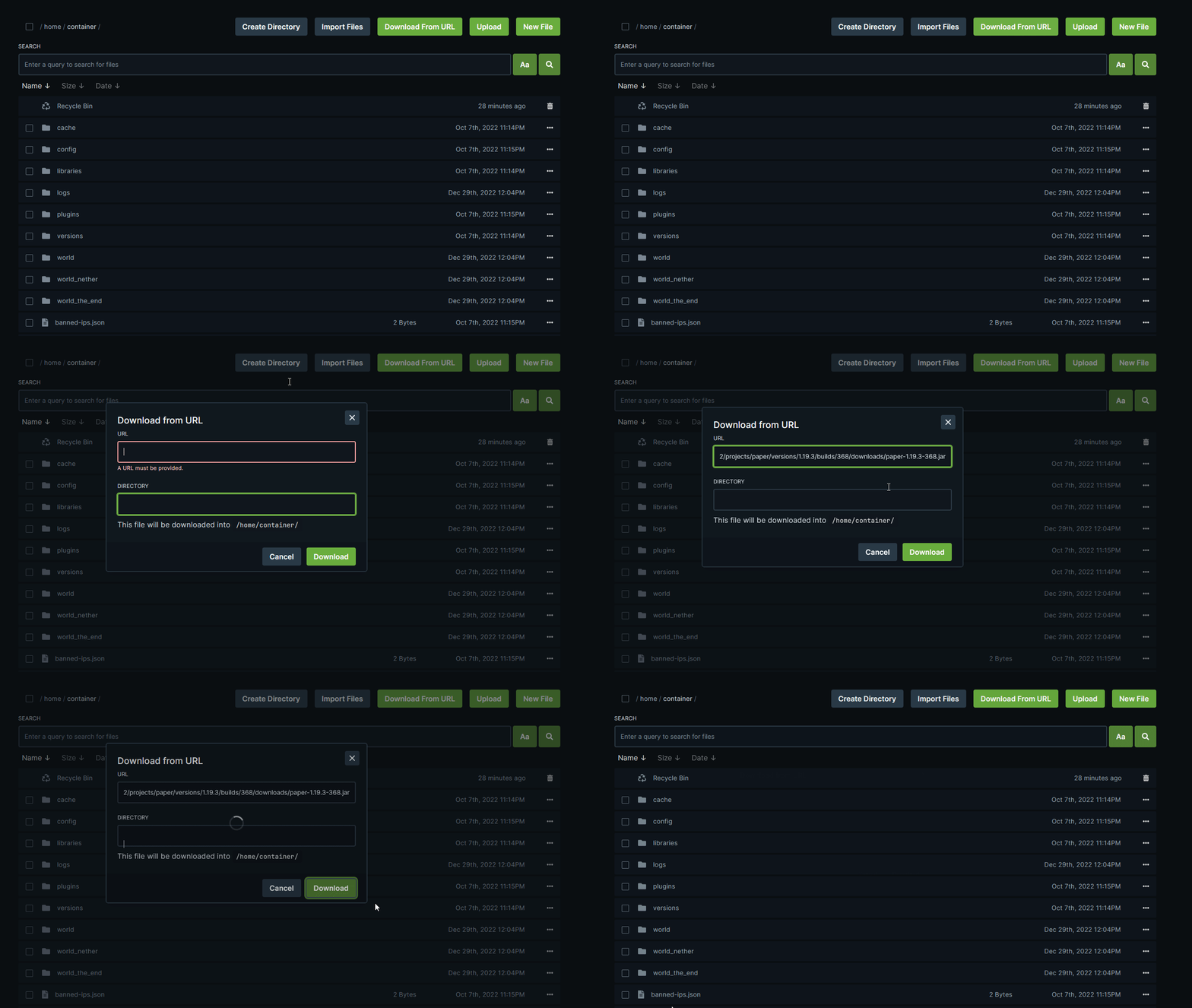
Download files directly from a URL into your server.\
Great for plugins, modpacks, server JARs, and resource packs.
1. Go to **File Manager**
2. Click **Download from URL**
3. Enter the file URL, filename, and destination folder
4. Click **Download**
Enter your old server's **SFTP/FTP/FTPS** credentials.\
Leave the base directory as default, or specify a folder (e.g., `/plugins`) to import only that folder.
Click **Import Files** to begin the transfer.
***
## SFTP Upload
No size limit. Recommended for large files.
Use SFTP if you’re uploading **worlds**, **modpacks**, or files larger than 100MB.
### Recommended SFTP Clients
* **[Cyberduck](https://cyberduck.io/)** — Simple UI, Windows & macOS
* **[WinSCP](https://winscp.net/eng/download.php)** — Windows-only
* **[Termius](https://termius.com/)** — Advanced, cross-platform
### How to Connect
1. Go to **Settings** → **Launch SFTP**
2. Copy your SFTP details
3. Open Cyberduck (or another client)
4. Choose **Open Connection → SFTP (SSH File Transfer Protocol)**
5. Enter your credentials
6. Drag-and-drop your files into the server
**Slow transfer?**\
Lots of small files upload slowly.\
Zip them first, upload once, and then [unarchive](/panel/unarchiving) them in the panel.
***
## Download from URL
No size limit.
Download files directly from a URL into your server.\
Great for plugins, modpacks, server JARs, and resource packs.
1. Go to **File Manager**
2. Click **Download from URL**
3. Enter the file URL, filename, and destination folder
4. Click **Download**
 ***
Still not working? [Get help](https://berrybyte.net/contact)
***
Still not working? [Get help](https://berrybyte.net/contact)