> ## Documentation Index
> Fetch the complete documentation index at: https://docs.berrybyte.net/llms.txt
> Use this file to discover all available pages before exploring further.
# Backups & Restores
> How to create, restore, and manage backups for your game server.
Backups protect your server from data loss, crashes, corruption, or accidental file changes. berrybyte also takes **daily off-site backups automatically**, giving you an extra layer of protection.
***
## Creating Backups
Go to the **Backups** tab in your game panel and click **Create Backup**.
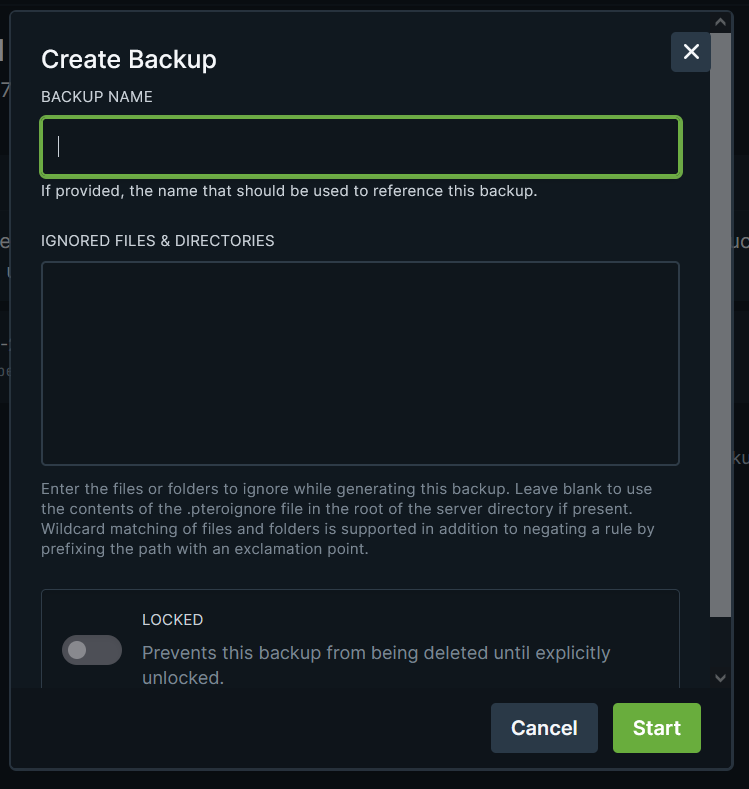
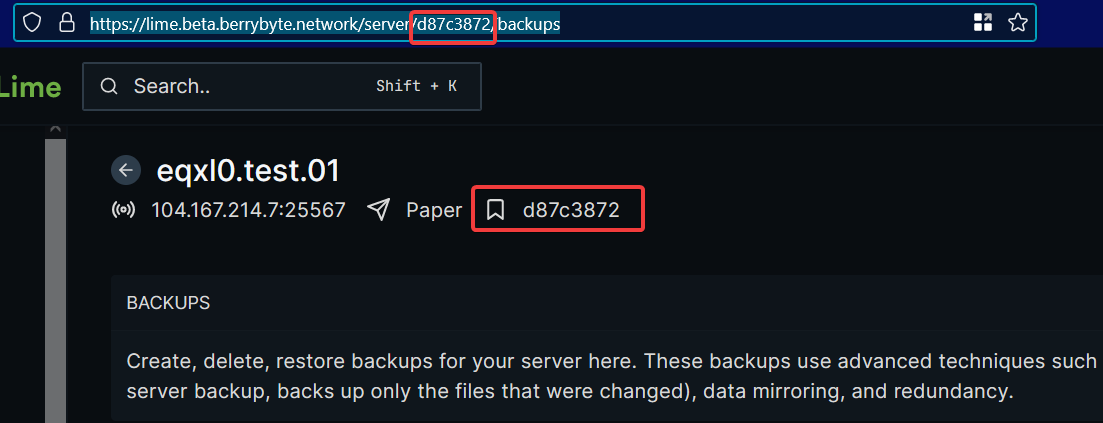 You’ll see a form that lets you customize the backup:
 ### Options
* **Backup Name** — optional; leave blank for an automatic timestamp
* **Ignored Files & Directories** — skip files/folders (e.g., `/plugins/Dynmap/*`)
* **Locked** — prevents accidental deletion
Click **Start Backup** to begin.
***
## Deleting Backups
To delete a backup:
1. Click the three dots next to the backup
2. Select **Delete**
3. Confirm deletion
Deleted backups **cannot** be recovered.
***
## Restoring Backups
To restore a backup:
1. Click the three dots next to the backup
2. Choose **Restore**
3. Select whether to delete existing files first
### Options
* **Backup Name** — optional; leave blank for an automatic timestamp
* **Ignored Files & Directories** — skip files/folders (e.g., `/plugins/Dynmap/*`)
* **Locked** — prevents accidental deletion
Click **Start Backup** to begin.
***
## Deleting Backups
To delete a backup:
1. Click the three dots next to the backup
2. Select **Delete**
3. Confirm deletion
Deleted backups **cannot** be recovered.
***
## Restoring Backups
To restore a backup:
1. Click the three dots next to the backup
2. Choose **Restore**
3. Select whether to delete existing files first
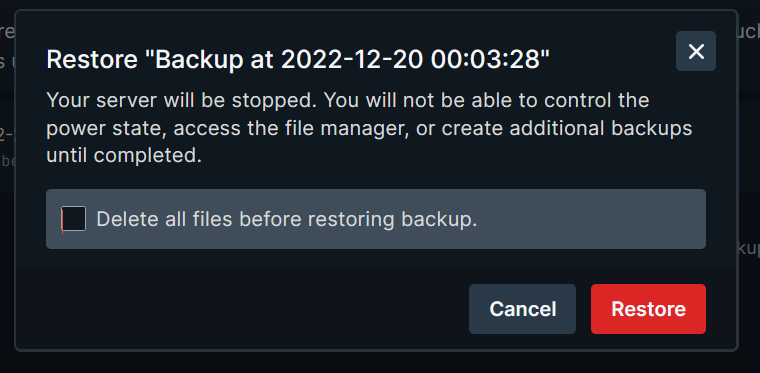 **Tip:** Always create a fresh backup before restoring, just in case you want to revert.
***
## Mounting Backups
If you need to restore **specific files** instead of the entire server, use **Mount Backup**.
Mounting turns a backup into a read-only folder you can browse.
While a backup is mounted, you cannot use power controls (Start/Stop/Restart).\
Unmount the backup first.
**Tip:** Always create a fresh backup before restoring, just in case you want to revert.
***
## Mounting Backups
If you need to restore **specific files** instead of the entire server, use **Mount Backup**.
Mounting turns a backup into a read-only folder you can browse.
While a backup is mounted, you cannot use power controls (Start/Stop/Restart).\
Unmount the backup first.
 ### How to Mount
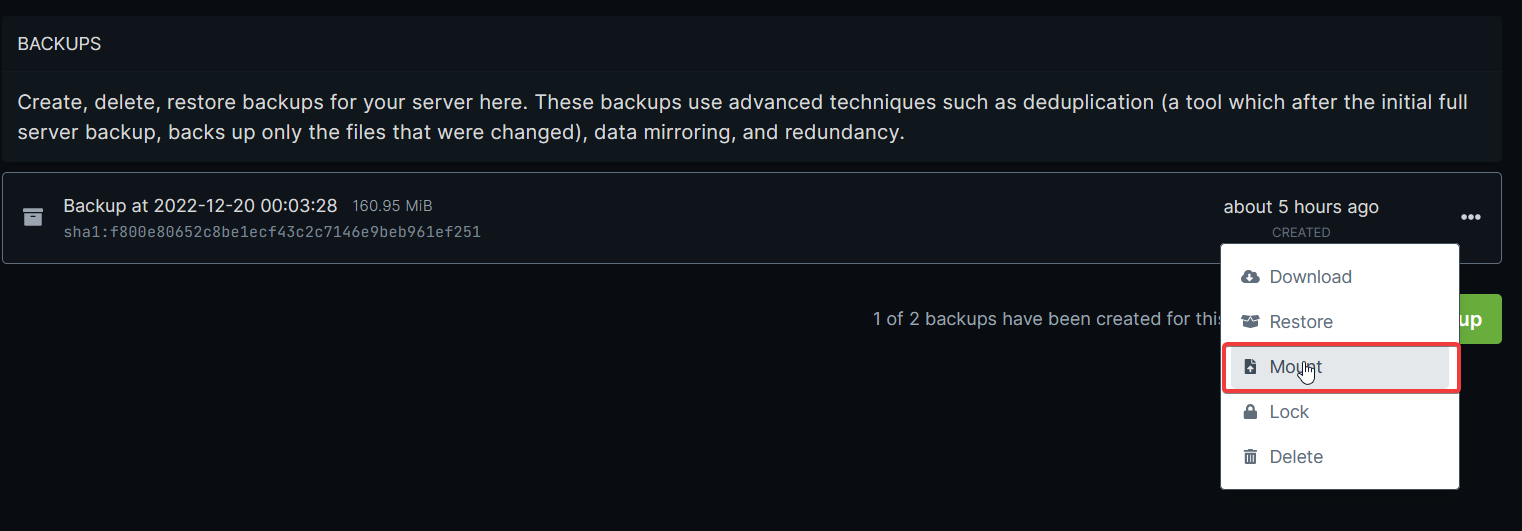
1. Click the three dots on a backup
2. Select **Mount**
3. A new folder will appear in your File Manager
### How to Mount
1. Click the three dots on a backup
2. Select **Mount**
3. A new folder will appear in your File Manager
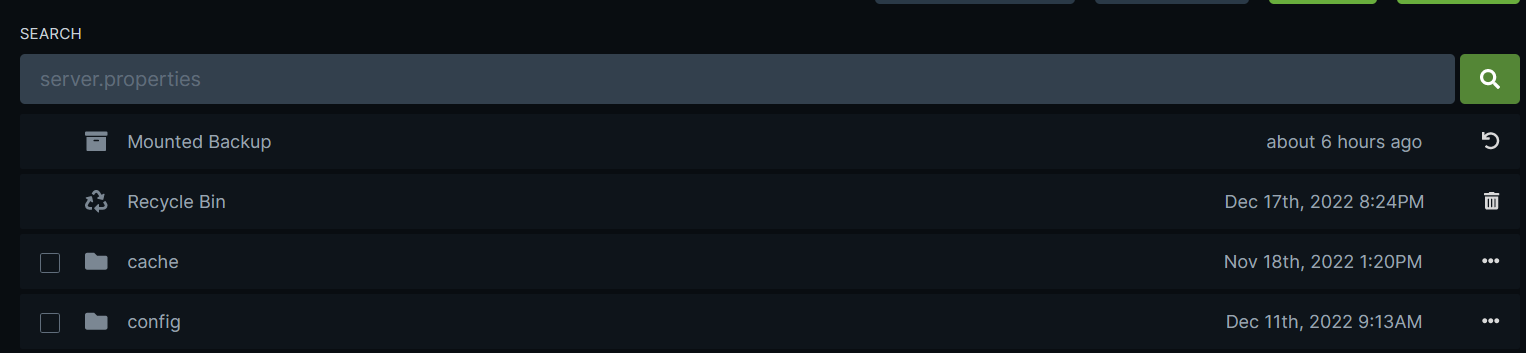 ### Restoring Files from a Mounted Backup
Open the mounted folder, select any files or folders, then choose:
* **Restore** — restores files to their original location
* **Move** — restores files to a different folder
***
## Off-Site Backups
We automatically take off-site backups **every 24 hours**, stored for **14 days**.\
These backups are kept on remote storage and can be restored on request.
### To request an off-site backup restore:
[Create a ticket](https://berrybyte.net/ticket) with:
* Your **server ID** (Settings → Debug Information)
* Your **email address**
* The **date** of the backup you want
Make your own backup before we restore an off-site snapshot -\
off-site restores overwrite your current server and cannot be undone.
***
Still not working? [Get help](https://berrybyte.net/contact)
### Restoring Files from a Mounted Backup
Open the mounted folder, select any files or folders, then choose:
* **Restore** — restores files to their original location
* **Move** — restores files to a different folder
***
## Off-Site Backups
We automatically take off-site backups **every 24 hours**, stored for **14 days**.\
These backups are kept on remote storage and can be restored on request.
### To request an off-site backup restore:
[Create a ticket](https://berrybyte.net/ticket) with:
* Your **server ID** (Settings → Debug Information)
* Your **email address**
* The **date** of the backup you want
Make your own backup before we restore an off-site snapshot -\
off-site restores overwrite your current server and cannot be undone.
***
Still not working? [Get help](https://berrybyte.net/contact)