> ## Documentation Index
> Fetch the complete documentation index at: https://docs.berrybyte.net/llms.txt
> Use this file to discover all available pages before exploring further.
# How to Join Soulmask Server - Complete Multiplayer Connection Guide
> Comprehensive guide to joining Soulmask servers for multiplayer tribe-building gameplay. Learn how to find your server IP, connect directly to servers, and troubleshoot common connection issues.
# How to Join Your Soulmask Server
Connecting to your Soulmask server unlocks the full multiplayer tribe-building experience where you and your friends can collaborate to build civilizations, manage tribes, and survive together in this innovative multiplayer survival game. This guide covers the complete connection process and troubleshooting for seamless gameplay.
## Finding the IP address
Before you can join and connect to your Soulmask server, you'll need to find the [IP address](https://whatismyipaddress.com/ip-address) (a combination of numbers, e.g `104.167.215.1`).
1. Login to the [game control panel](https://game.berrybyte.net)
2. Locate the subdomain or IP:port below the name of the server
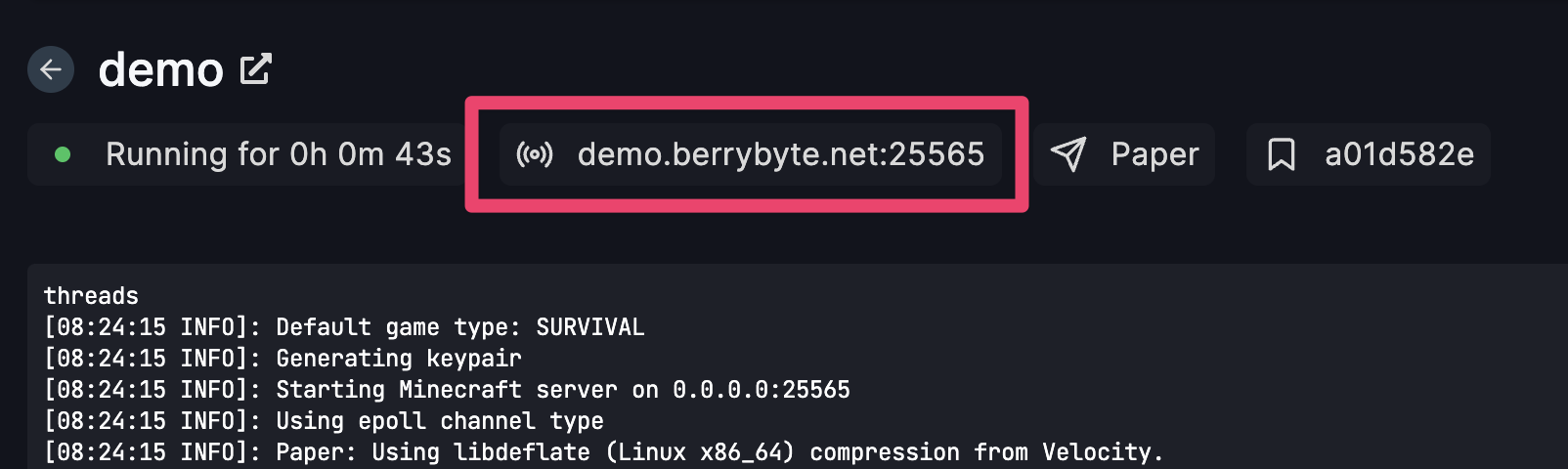 3. Click on the highlighted area box and it will copy the IP to your clipboard
## Joining the multiplayer Soulmask server
1. Launch Soulmask
2. Select **Online Game** from the main menu
3. Click on the highlighted area box and it will copy the IP to your clipboard
## Joining the multiplayer Soulmask server
1. Launch Soulmask
2. Select **Online Game** from the main menu
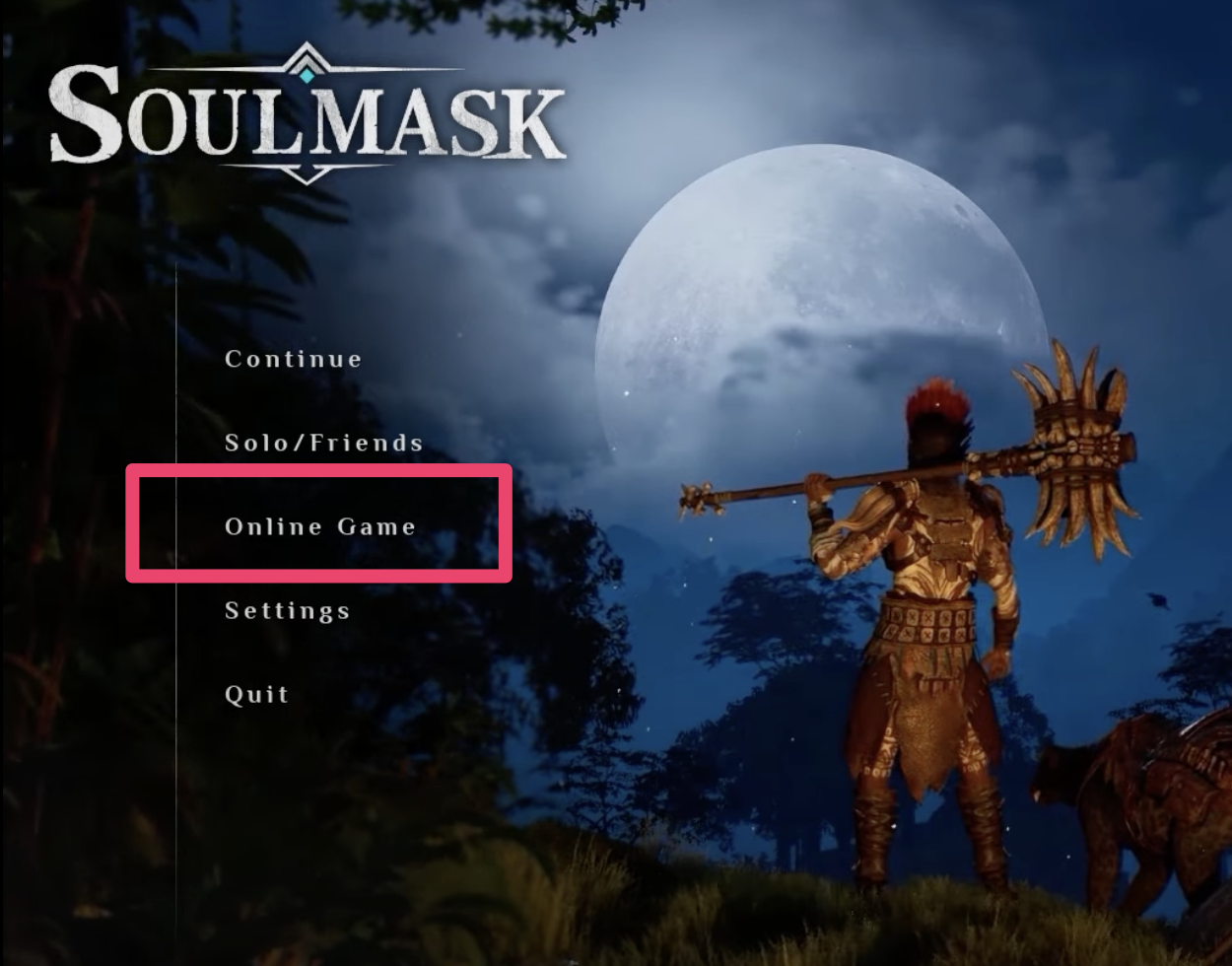 3. Click "**Connect to the server directly**"
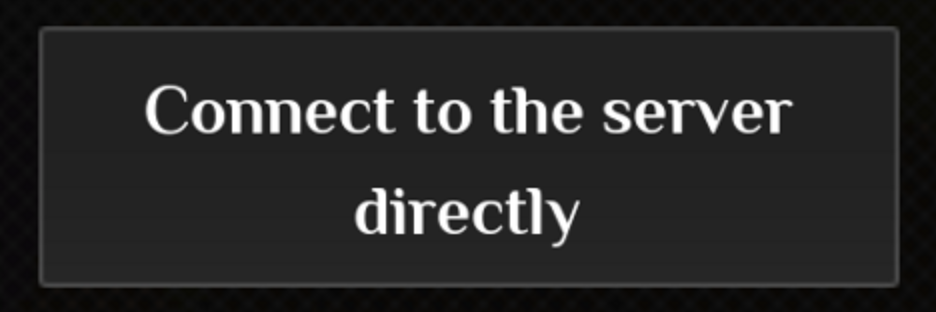 4. Enter the IP address, port, and password (if applicable) into the fields
5. Click **Confirm** which will connect and load you into your multiplayer server!
Allow the server a few moments to accept the connection and then voilà, you should now be able to join your Soulmask server!
## Common Issues
* **"Failed to connect to server" error**: Server may be offline or IP address incorrect
* **Solution**: Verify server is running in control panel and double-check IP address and port
* **Password authentication failed**: Incorrect server password or special characters
* **Solution**: Verify password is correct and avoid special characters that may cause issues
* **Connection timeout during join**: Network connectivity or firewall blocking connection
* **Solution**: Check firewall settings and ensure server ports are accessible
* **Server incompatible version**: Client and server running different Soulmask versions
* **Solution**: Ensure both client and server are updated to the same game version
## Related Guides
* [Change Server Settings](/games/soulmask/change-server-settings) - Customize gameplay options
* [Ban and Unban Players](/games/soulmask/banning-and-unbanning-players) - Manage server access
* [Control Panel Overview](/panel/overview) - Understanding your server management interface
* [Palworld Server Connection](/games/palworld/join-server) - Similar direct connection process
* [General Connection Troubleshooting](/games/minecraft/common-errors/connection-timed-out) - Fix common connection issues
Running into issues? Join our [Discord community](https://berrybyte.net/discord) or [contact support](https://berrybyte.net/tickets).
4. Enter the IP address, port, and password (if applicable) into the fields
5. Click **Confirm** which will connect and load you into your multiplayer server!
Allow the server a few moments to accept the connection and then voilà, you should now be able to join your Soulmask server!
## Common Issues
* **"Failed to connect to server" error**: Server may be offline or IP address incorrect
* **Solution**: Verify server is running in control panel and double-check IP address and port
* **Password authentication failed**: Incorrect server password or special characters
* **Solution**: Verify password is correct and avoid special characters that may cause issues
* **Connection timeout during join**: Network connectivity or firewall blocking connection
* **Solution**: Check firewall settings and ensure server ports are accessible
* **Server incompatible version**: Client and server running different Soulmask versions
* **Solution**: Ensure both client and server are updated to the same game version
## Related Guides
* [Change Server Settings](/games/soulmask/change-server-settings) - Customize gameplay options
* [Ban and Unban Players](/games/soulmask/banning-and-unbanning-players) - Manage server access
* [Control Panel Overview](/panel/overview) - Understanding your server management interface
* [Palworld Server Connection](/games/palworld/join-server) - Similar direct connection process
* [General Connection Troubleshooting](/games/minecraft/common-errors/connection-timed-out) - Fix common connection issues
Running into issues? Join our [Discord community](https://berrybyte.net/discord) or [contact support](https://berrybyte.net/tickets).