> ## Documentation Index
> Fetch the complete documentation index at: https://docs.berrybyte.net/llms.txt
> Use this file to discover all available pages before exploring further.
# How to Change Soulmask Server Settings - Complete Configuration Guide
> Comprehensive guide to modifying Soulmask server settings through admin privileges. Learn how to set admin passwords, access in-game configuration, and customize gameplay parameters for your tribe-building server.
# How to Change Soulmask Server Settings
Customizing your Soulmask server settings allows you to create the perfect tribe-building experience for your community. This guide covers the complete process of gaining admin privileges and accessing the in-game configuration system to modify gameplay parameters, difficulty settings, and server rules.
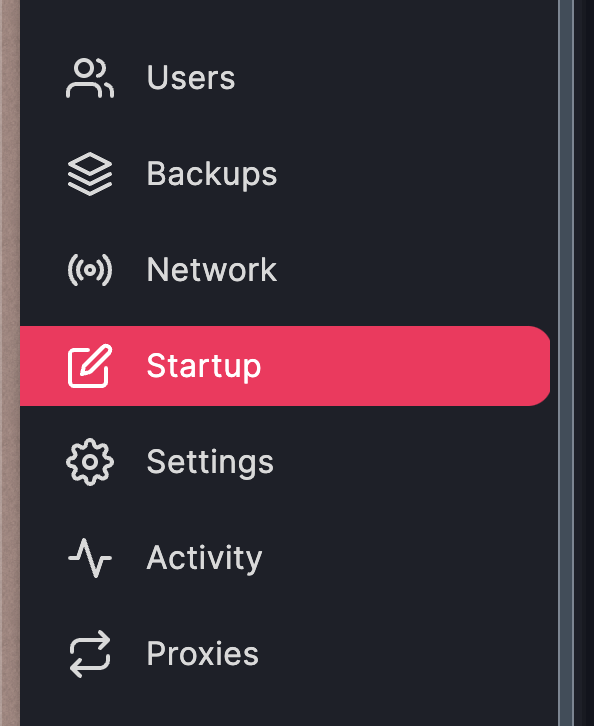
1. Open the **Startup** tab on the [game control panel](https://game.berrybyte.net)
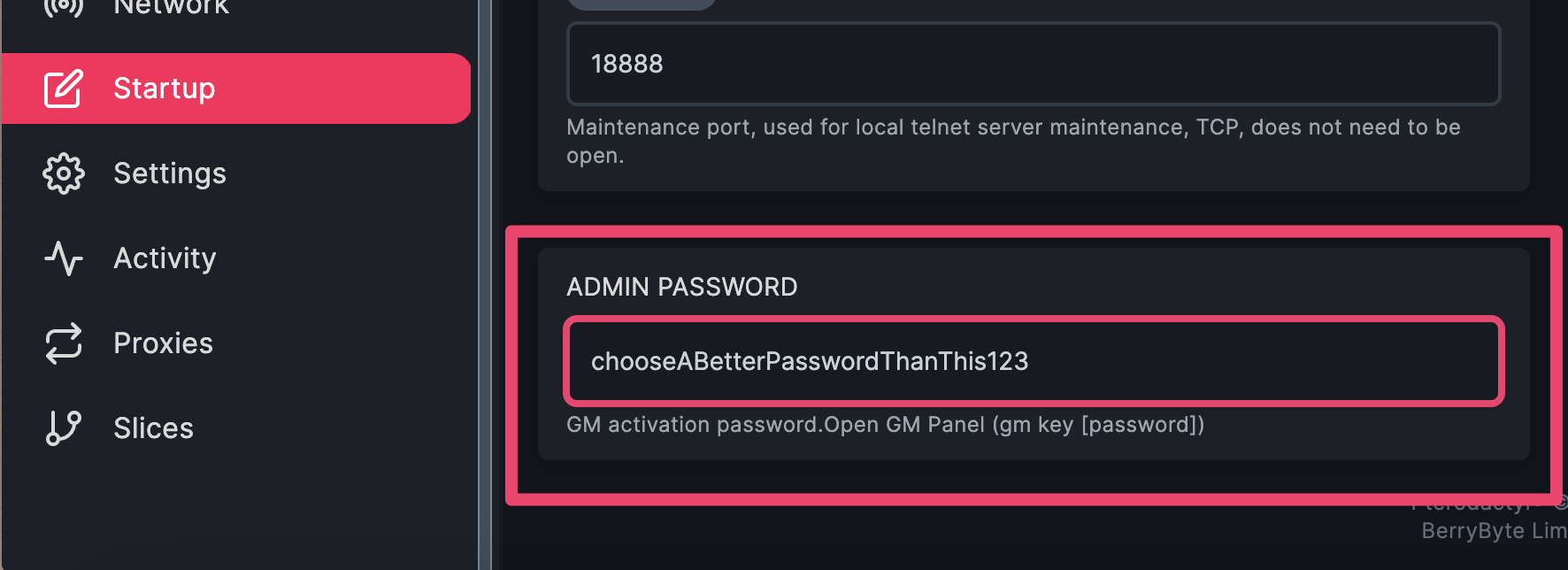
 2. Set an admin password in the highlighted field
 3. To open the console, press the `~` key in-game.
4. Type `gm key `
5. The next screen will prompt for your admin password again, and press **Become the Admin**
6. Once all done, you can change the server settings as you like!
## Common Issues
* **Admin password not working**: Password may contain special characters or incorrect format
* **Solution**: Use alphanumeric passwords without spaces or special characters
* **Console not opening with \~ key**: Different keyboard layout or key binding conflict
* **Solution**: Try alternative console keys or check game key bindings in settings
* **"Become the Admin" button not appearing**: Admin password not properly set or server restart needed
* **Solution**: Verify admin password is saved and restart server if necessary
* **Settings changes not saving**: Admin privileges not properly activated
* **Solution**: Re-authenticate as admin and ensure you have proper permissions
## Related Guides
* [Ban and Unban Players](/games/soulmask/banning-and-unbanning-players) - Manage player access
* [Update Server](/games/soulmask/update-server) - Keep server version current
* [Server Backups](/panel/backups) - Backup before making configuration changes
* [Palworld Server Configuration](/games/palworld/configure-server-settings) - Cross-game configuration guide
* [V Rising Server Configuration](/games/vrising/configure-server-settings) - Similar admin-based configuration
3. To open the console, press the `~` key in-game.
4. Type `gm key `
5. The next screen will prompt for your admin password again, and press **Become the Admin**
6. Once all done, you can change the server settings as you like!
## Common Issues
* **Admin password not working**: Password may contain special characters or incorrect format
* **Solution**: Use alphanumeric passwords without spaces or special characters
* **Console not opening with \~ key**: Different keyboard layout or key binding conflict
* **Solution**: Try alternative console keys or check game key bindings in settings
* **"Become the Admin" button not appearing**: Admin password not properly set or server restart needed
* **Solution**: Verify admin password is saved and restart server if necessary
* **Settings changes not saving**: Admin privileges not properly activated
* **Solution**: Re-authenticate as admin and ensure you have proper permissions
## Related Guides
* [Ban and Unban Players](/games/soulmask/banning-and-unbanning-players) - Manage player access
* [Update Server](/games/soulmask/update-server) - Keep server version current
* [Server Backups](/panel/backups) - Backup before making configuration changes
* [Palworld Server Configuration](/games/palworld/configure-server-settings) - Cross-game configuration guide
* [V Rising Server Configuration](/games/vrising/configure-server-settings) - Similar admin-based configuration